

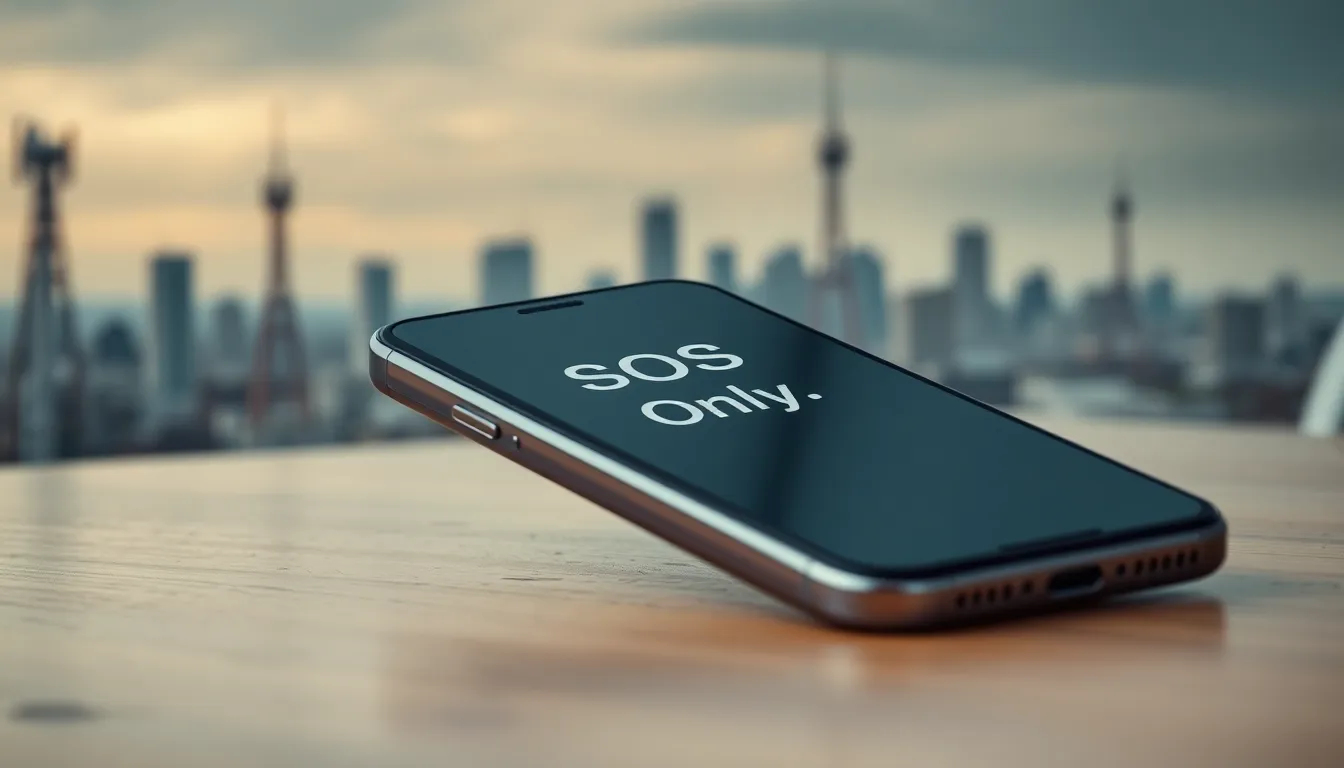
Imagine you’re ready to conquer the world with your trusty iPhone, but suddenly, you see “SOS Only” glaring back at you like a neon sign saying, “Good luck, buddy!” What does this cryptic message really mean? It’s like your phone decided to play hard to get, leaving you wondering if it’s trying to send you a secret message or just being dramatic.
Understanding SOS Only on iPhone
Encountering “SOS Only” on an iPhone can create confusion about connectivity. This message signals that the device can connect to emergency services but lacks a regular cellular signal.
What Is SOS Only?
“SOS Only” indicates limited service. Users see this message when the iPhone connects only to emergency calls through any available network. Essentially, the device cannot access cellular data or make standard calls, remaining blocked from regular service. This status often emerges when in a location with weak reception or when the operator prevents access due to unpaid bills.
How Does It Work?
The iPhone searches for available cellular networks. If it finds none allowing standard connections, it switches to emergency mode. In this mode, only calls to emergency services can be made, utilizing any nearby cellular tower, regardless of carrier. Normal functions, such as texting or standard calls, remain restricted. Location services may also operate, allowing users to access emergency apps or contacts.
Common Reasons for SOS Only
Encountering the “SOS Only” message can stem from several issues. Understanding these common reasons helps in diagnosing the problem effectively.
Network Issues
Network issues frequently lead to the “SOS Only” status. Weak cellular signals often contribute to this situation, making regular calls impossible. Limited coverage areas may also play a role, especially in remote locations. Cell towers could be down or temporarily out of service, further restricting connectivity. Interference from buildings or natural obstacles can affect signals as well. Checking for outages in the local area typically clarifies if this is the cause.
SIM Card Problems
Problems with the SIM card can trigger the “SOS Only” message. An improperly inserted SIM card may disrupt connectivity, so it’s crucial to ensure it sits correctly in the tray. Physical damage, like scratches or cracks, could also prevent the card from functioning. If the SIM is deactivated or expired, the iPhone won’t authenticate its connection with the carrier. Replacing the SIM card may solve persistent issues and restore service quickly.
Software Glitches
Software glitches can sometimes cause the “SOS Only” message. Outdated operating systems might lead to connectivity problems, so updating the iOS version is essential. Restarts often resolve temporary software hitches by refreshing the system. Additionally, resetting the Network Settings can fix configuration errors that create signal issues. Many users find that restoring their device to factory settings clears persistent software bugs effectively.
How to Troubleshoot SOS Only
Encountering the “SOS Only” message can disrupt communication. Here are effective steps to troubleshoot the issue.
Restart Your iPhone
Restarting the iPhone often resolves connectivity problems. Press and hold the side button along with the volume buttons until the slider appears. Sliding it to power off the device ensures a full shutdown. After waiting for about 30 seconds, press the side button again until the Apple logo appears. Many users find that a simple restart often restores the cellular connection, allowing access to regular services again.
Check Network Settings
Checking network settings is crucial. Navigate to Settings and select Cellular or Mobile Data. Ensure that cellular data is enabled and that the device isn’t in Airplane Mode. Additionally, look for any carrier settings updates, which can optimize network performance. If the settings appear correct yet the issue persists, consider resetting the network settings. This process clears glitches and restores default settings.
Update Your iPhone
Ensuring the iPhone runs the latest operating system prevents software-related issues. To check for updates, open Settings and select General, then tap Software Update. Download any available updates promptly. Updating maintains performance and resolves compatibility issues with the network, making better connectivity likely. Regular updates contribute to overall device health, minimizing the chances of encountering the “SOS Only” message.
When to Seek Help
When experiencing the “SOS Only” message, users should consider reaching out for assistance to resolve connectivity issues.
Contacting Your Carrier
Contacting the carrier proves essential when the “SOS Only” message persists. Carriers often provide specific information about network status, outages, or account problems. They can quickly check the account’s billing status to rule out unpaid bills as a cause. Explaining circumstances clearly helps representatives diagnose the issue efficiently. Moreover, understanding whether the device functions in different locations can optimize troubleshooting. Users should expect potential solutions from the carrier, including reset instructions or recommendations for updating plans that enhance service coverage.
Visiting an Apple Store
Visiting an Apple Store can provide valuable help when the “SOS Only” message continues. Technicians can diagnose hardware problems, including SIM card issues. A quick diagnostic check may reveal underlying software glitches that cause the connectivity problem. Users should prepare to explain the situation, detailing previous troubleshooting efforts. Additionally, sessions at the store often include software updates or restorations if necessary. Apple Experts can provide tailored solutions, ensuring users receive proper guidance for their specific device needs.
Dealing with the “SOS Only” message on an iPhone can be frustrating but understanding its implications is essential. This status serves as a reminder that while emergency calls are possible, regular communication isn’t. Identifying the root cause is crucial for resolving the issue effectively.
Whether it’s network problems or SIM card issues, knowing the potential fixes can help restore full functionality. If troubleshooting steps don’t yield results, reaching out to the carrier or visiting an Apple Store ensures users get the support they need to regain reliable service. Staying informed about these aspects can make navigating connectivity challenges a lot easier.