

Upgrading to a new iPhone is exciting, but the thought of transferring all those precious photos, contacts, and apps can feel like preparing for a marathon. How long will it take? Will it be faster than your last attempt at assembling IKEA furniture? Fear not. With a little know-how, the process can be smooth and quick.
Understanding Data Transfer
Transferring data from an old iPhone to a new iPhone often takes less time than expected. Factors like data size, transfer method, and internet speed influence the total duration. Users can choose various transfer methods including Quick Start, iCloud, or direct iTunes connection.
Quick Start, relying on a device-to-device Wi-Fi connection, usually completes the transfer within 10 to 30 minutes. The total time depends on the amount of data transferred, which can include photos, videos, and app data.
iCloud transfer may take longer. For instance, a slower internet connection can extend the process from 30 minutes to several hours, depending on the data volume. Once the old iPhone backs up to iCloud, users can restore their data on the new device seamlessly.
Direct transfers via iTunes or Finder are often faster than cloud methods. When using this method, the time generally ranges from 15 to 40 minutes. The swiftest option remains the device-to-device transfer through Quick Start, provided Wi-Fi is stable.
Users must consider their preferences and available resources to choose the most suitable method. By evaluating data volume and equipment, they can streamline the transfer. Understanding these variables can significantly improve the experience, turning a seemingly daunting task into a manageable one.
Methods of Data Transfer
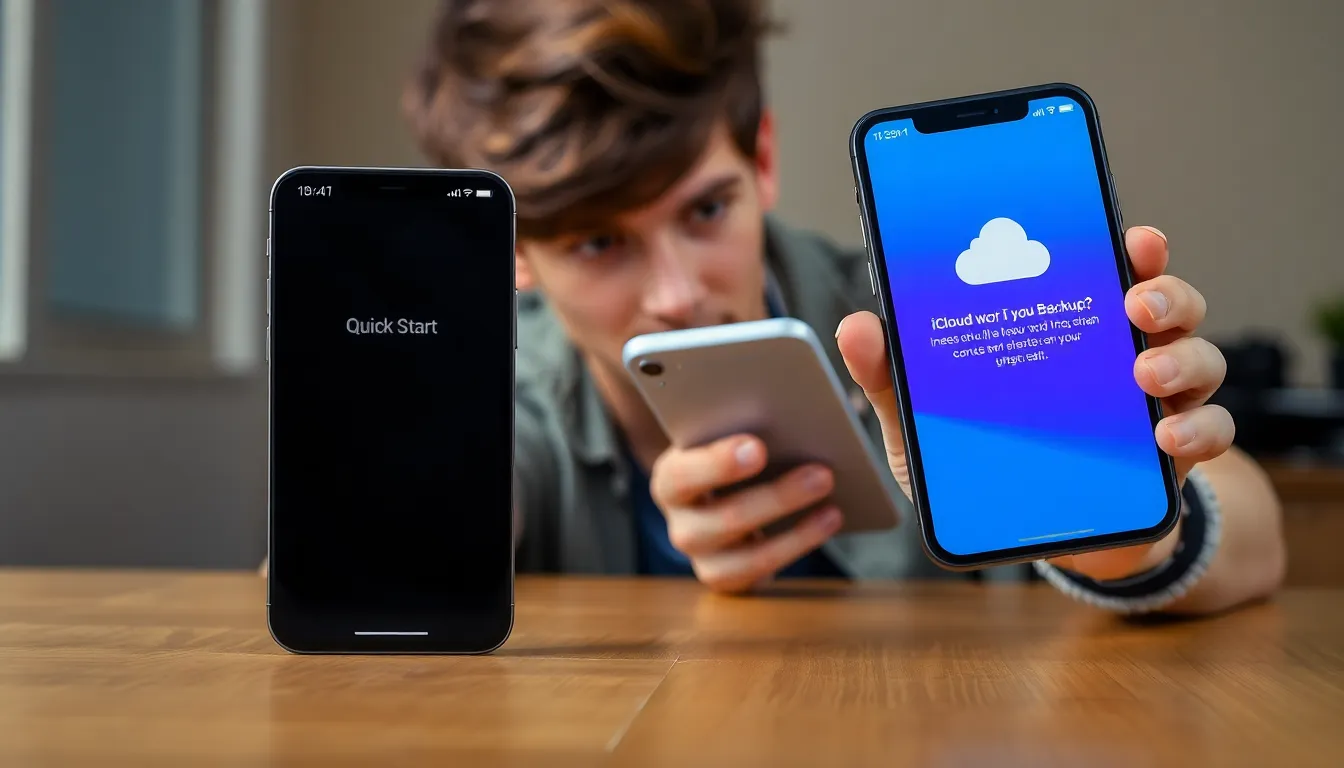
Multiple effective methods exist for transferring data from an old iPhone to a new iPhone. Quick Start, iCloud, and iTunes/Finder offer different options based on user preference and circumstances.
Quick Start Transfer
Quick Start utilizes a seamless setup process for transferring data. Users place both devices near each other and follow on-screen instructions. Transfers typically take 10 to 30 minutes, influenced by the amount of data. This method requires both devices to run iOS 11 or later, making it a convenient choice. Using Quick Start often results in a smooth transition for most users, especially when setting up new phones.
iCloud Transfer
iCloud Transfer provides a wireless option for those who back up data before switching devices. Users start by ensuring both old and new iPhones are connected to a reliable Wi-Fi network. It converts a full backup into a new iPhone setup, allowing users to select the most recent backup. The time it takes depends on internet speed and backup size, often resulting in longer wait times compared to direct transfers. This method offers convenience and flexibility for users who prioritize a wireless transfer.
iTunes/Finder Transfer
iTunes or Finder connects both devices for a direct data transfer, typically faster than other methods. Users start by connecting the old iPhone to a computer and creating a backup. After that, they connect the new iPhone and select the option to restore from backup. Transfers usually range from 15 to 40 minutes, depending on the data size. This method suits users who prefer wired connections and want to minimize transfer times.
Factors Affecting Transfer Time
Transfer time largely depends on several key factors. Understanding these can help users prepare for their transition to a new iPhone.
Amount of Data
The total volume of data significantly impacts transfer duration. Larger amounts of photos, apps, and files take more time to move. For instance, a user with hundreds of gigabytes of information may experience longer transfer times compared to someone with just a few gigabytes. Data types also influence speed; for example, high-resolution photos consume more space and need more time to transfer than simple contacts. Evaluating the data size beforehand allows users to gauge their expected transfer duration.
Internet Speed
Internet speed plays a crucial role in data transfer, especially during iCloud backups and restores. Slower connections prolong the process, while faster connections expedite data migration. A stable Wi-Fi connection often produces the best results. For example, a speed of 100 Mbps enhances transfer efficiency, while 10 Mbps may slow down the process considerably. Users should ensure they connect to a reliable network during the transfer to facilitate a smoother experience.
Device Compatibility
Device compatibility affects how seamlessly data transfers occur. Using newer models with the latest iOS provides improved features and optimization for faster transfers. For example, transferring data between two devices running iOS 16 generally operates more efficiently than a transfer between an older model and a new one. Some transfer methods, like Quick Start, require specific iOS versions. Ensuring that both devices are compatible can minimize potential complications and enhance overall transfer speed.
Estimated Time for Data Transfer
Transferring data from an old iPhone to a new iPhone typically varies based on several factors. Quick Start often completes transfers in 10 to 30 minutes. Users who opt for iCloud might experience longer wait times due to their internet speed, especially if large backups are involved. Generally, iCloud transfers can take hours if needing a slow internet connection combined with large data.
Direct transfers through iTunes or Finder usually range from 15 to 40 minutes, making these methods a fast alternative for users seeking efficiency. Total transfer time largely depends on the amount of data; transferring hundreds of gigabytes will extend the duration significantly compared to smaller amounts of data.
Internet speed plays a crucial role in data transfer efficiency, especially for iCloud users. Faster connections result in quicker backups, subsequently reducing wait times during transfer. Device compatibility also affects transfer speed; ensuring both iPhones run the latest iOS versions may streamline the process.
When assessing timeframes, it’s essential to prioritize these elements for a smoother transition. Users equipped with knowledge about their files and chosen methods can better manage expectations around the duration of their data transfers. Many find that understanding these variables leads to a more efficient and less stressful setup experience.
Tips to Speed Up the Process
Transferring data efficiently requires attention to details. Ensure both iPhones are fully charged before starting the process. Choose a high-speed internet connection for iCloud transfers, as slow speeds can significantly drag down efficiency.
Utilizing the Quick Start feature often results in the fastest transfers because it creates a direct connection between the two devices. Place the old and new iPhones close together to streamline the process.
Limit background activities, such as app updates or large downloads, that might compete for bandwidth during the transfer. Reducing such activities can enhance transfer speed.
Clear unnecessary data from the old iPhone, including apps, photos, or videos not needed on the new device. Fewer items create a quicker transfer experience.
Ensure both devices have the latest iOS version. Updated systems typically improve compatibility and performance, leading to faster data flows.
When using iTunes or Finder, connect your old iPhone via a reliable USB cable. Wired connections usually provide speedier data transfers than wireless ones.
Setting up iCloud backups in advance can also streamline the process. Perform a backup right before starting the transfer to ensure the most recent data is carried over.
Incorporating these tips can transform the data transfer experience into a more efficient process, allowing users to enjoy their new iPhones sooner.
Transferring data from an old iPhone to a new one doesn’t have to be a daunting task. With the right approach and methods, users can complete the process in a surprisingly short time. Whether choosing Quick Start for a quick setup or iCloud for wireless convenience, understanding the factors at play can make all the difference.
By following the tips outlined in the article, users can ensure a smooth transition. This allows them to dive into their new device without unnecessary delays. Embracing the upgrade experience with confidence leads to a more enjoyable journey with the latest technology.